Getting Started
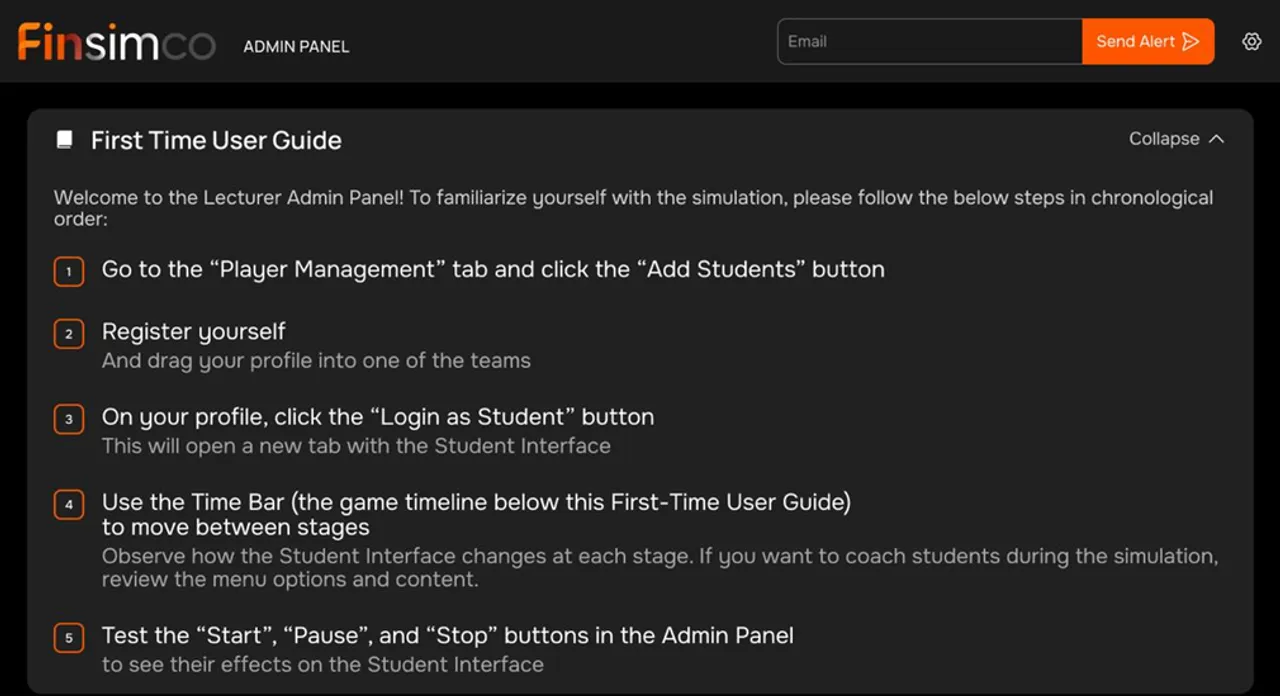
A built-in First Time User Guide helps lecturers get comfortable quickly. The same lecturer dashboard is used across all our simulations, so once you have run one, the next one feels immediately familiar.
Built for lecturers. No setup complexity. Just add students, launch, and facilitate with confidence.
A built-in First Time User Guide helps lecturers get comfortable quickly. The same lecturer dashboard is used across all our simulations, so once you have run one, the next one feels immediately familiar.
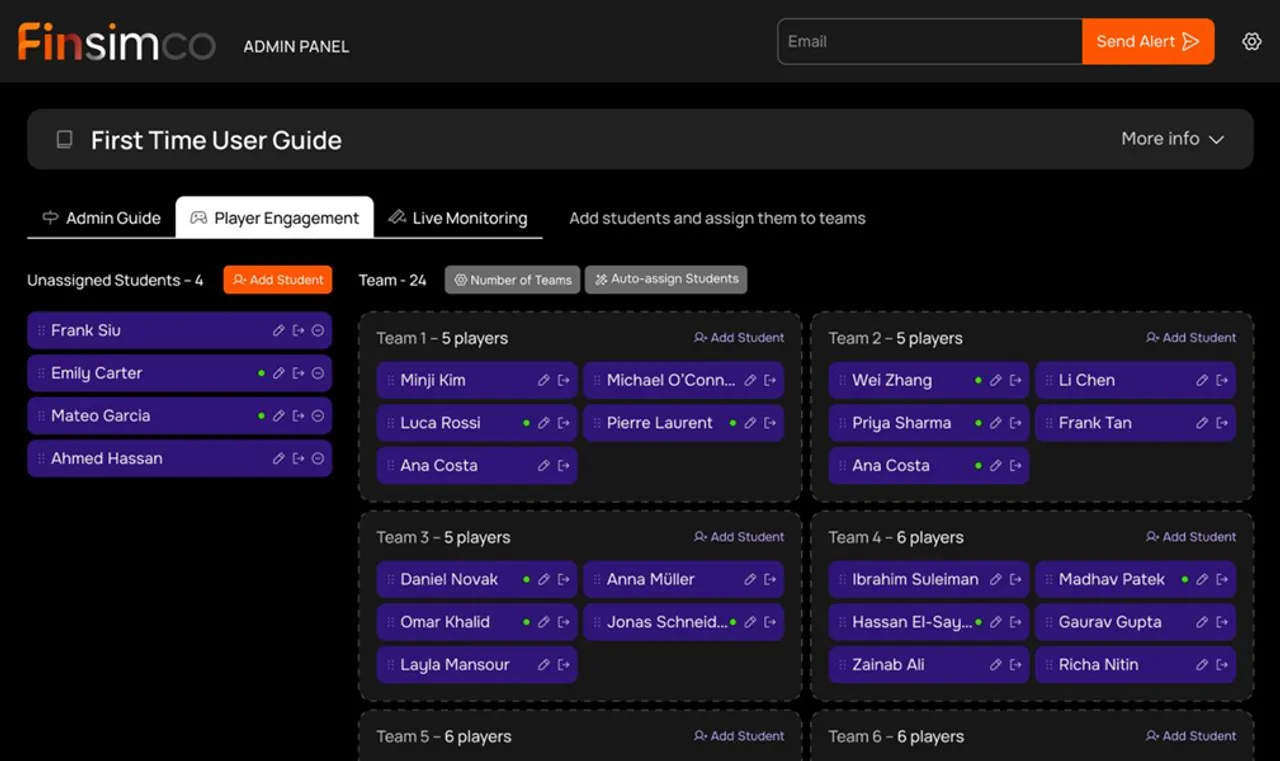
No facilitator setup is required. Unlike other simulations, you are not required to configure scenarios. Simply add your students and you are ready to go. For team-based simulations, assign students to teams by drag and drop or use auto-assign.
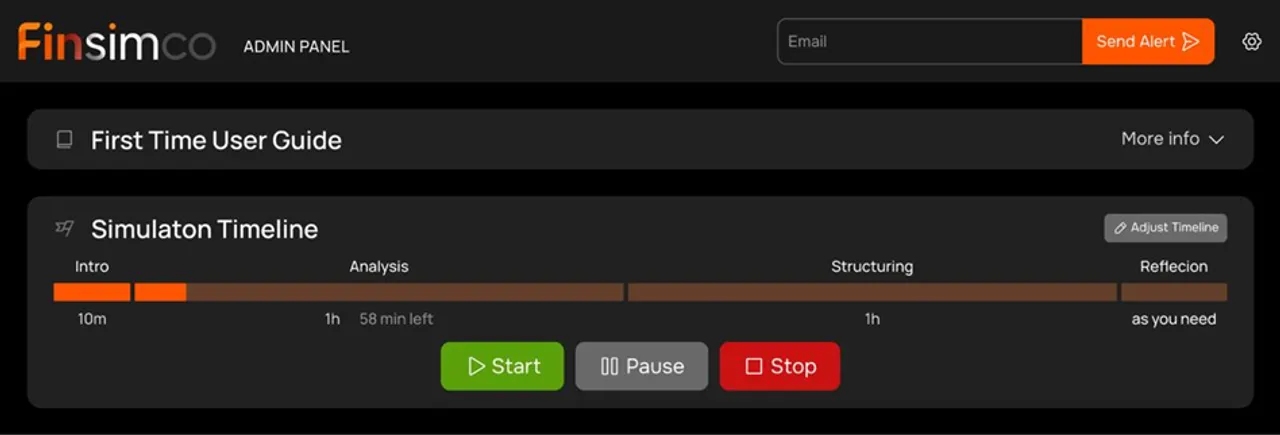
Run the session with just a few controls:
Click Start and the simulation runs by itself. Students are then guided automatically through each stage, starting with an intro video that explains the context, roles, and objectives.
Pause whenever you want more time for discussion or analysis.
Stop locks student access. Use this if you want to run the simulation over several sessions and do not want students to continue working. Clicking Start again resumes the simulation from where students left off.
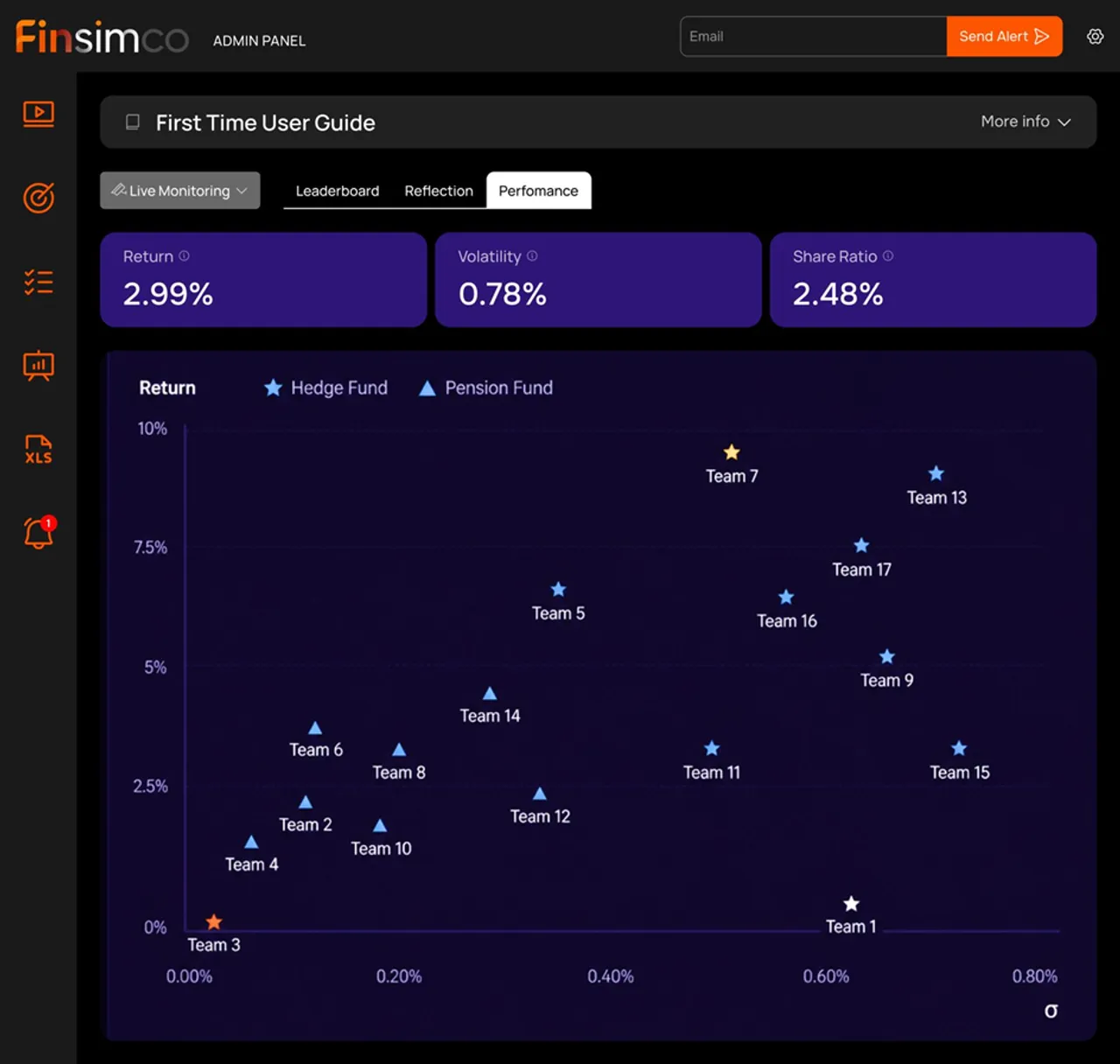
Each simulation ends with a reflection stage where students can review results, receive feedback, and see how they performed relative to their peers. Lecturers also see performance data in the lecturer dashboard, making it easy to debrief outcomes and support grading.

49 sec